If you’ve ever tried downloading a large file from Google Drive – especially popular shared files like big video files, you may have encountered the dreaded message:
Download quota exceeded for this file, so you can’t download it at this time
This issue is extremely common with frequently accessed files. The good news? There’s a simple and reliable workaround that allows you to download the file without waiting hours or days for the quota to reset.
In this guide, we’ll walk you through a proven method to bypass Google Drive’s download quota using shortcuts and folders. This method works for most users and does not require any third-party tools or extensions.
Why Does Google Drive Limit Downloads?
Google Drive applies download limits to files that are:
- Publicly shared
- Frequently downloaded by many users
- Large in size
Once the quota is exceeded, Google temporarily blocks direct downloads to reduce server load. However, Google Drive still allows copying shortcuts and downloading folders, which is what this workaround takes advantage of.
How to Bypass Google Drive Download Quota (Working Method)
Follow the steps carefully in the order below:
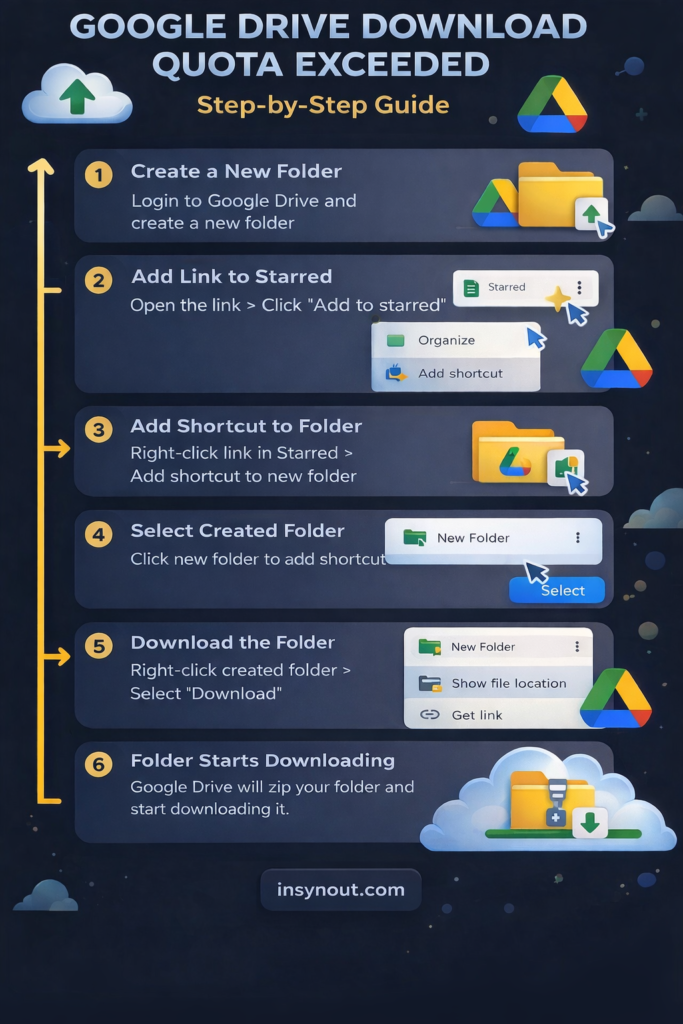
Step 1: Create a New Folder in Google Drive
- Log in to your Google Drive account
- Click New → Folder
- Give the folder any name (e.g., Download Fix)
This folder will temporarily store a shortcut to the blocked file.
Step 2: Open the File Link
- Open the Google Drive file link that shows the download quota exceeded message
- Do not attempt to download it directly
Step 3: Add the File to Starred
- In the top-right corner, click the three-dot menu (More actions)
- Select Add to Starred
This makes the file accessible from your Drive without copying it.
Step 4: Create a Shortcut to the File
- Go to Google Drive → Starred
- Right-click the starred file
- Hover over Organize
- Click Add shortcut
- Select the folder you created earlier
You have now placed a shortcut, not a copy, inside your Drive folder.
Step 5: Download the Folder
- Go to My Drive
- Right-click the folder containing the shortcut
- Click Download
Google Drive will now compress the folder into a ZIP file and download it to your system – bypassing the download quota restriction.
Why This Method Works
- Google blocks direct file downloads, not folder downloads
- Shortcuts do not count as file duplication
- Zipped folder downloads bypass quota checks in many cases
This trick has been widely used in gaming, modding, and in communities where shared resources are downloaded frequently.
Common Mistakes to Avoid
❌ Trying to download the file directly
❌ Making a full copy instead of a shortcut
❌ Skipping the “Starred” step
Does This Work for All Files?
✔ Works for most public shared files
✔ Works for Clone Hero spreadsheets and chart packs
✔ Works for large ZIP and media files
❌ May not work if the file owner has restricted downloads
Final Thoughts
If you frequently download shared Google Drive files, this shortcut-and-folder method is one of the fastest and safest ways to bypass Google Drive’s download quota without waiting for resets or using risky tools.
Whether you’re downloading big files, game mods, or shared resources, this method can save you hours of frustration.
Have fun and happy downloading! 🚀
Do tell us in the comments if this trick worked for you or not ✨