
If you use Microsoft Teams daily for work, you’ve probably run into this frustrating situation: you already have an active group chat with important discussions, decisions, and shared context, but when you try to add external users from another organization, Teams simply doesn’t allow it.
This limitation can be confusing, especially when collaboration with vendors, clients, or partners is critical. Recently, I faced this exact issue, and after some trial and error, I discovered a simple workaround that actually works.
In this article, I’ll walk you through: – Why external users can’t always be added to existing Teams group chats – The workaround that converts external users into guests – How this method allows you to share the entire chat history with them
This guide is written for office professionals who use Microsoft Teams for both business and day-to-day collaboration.
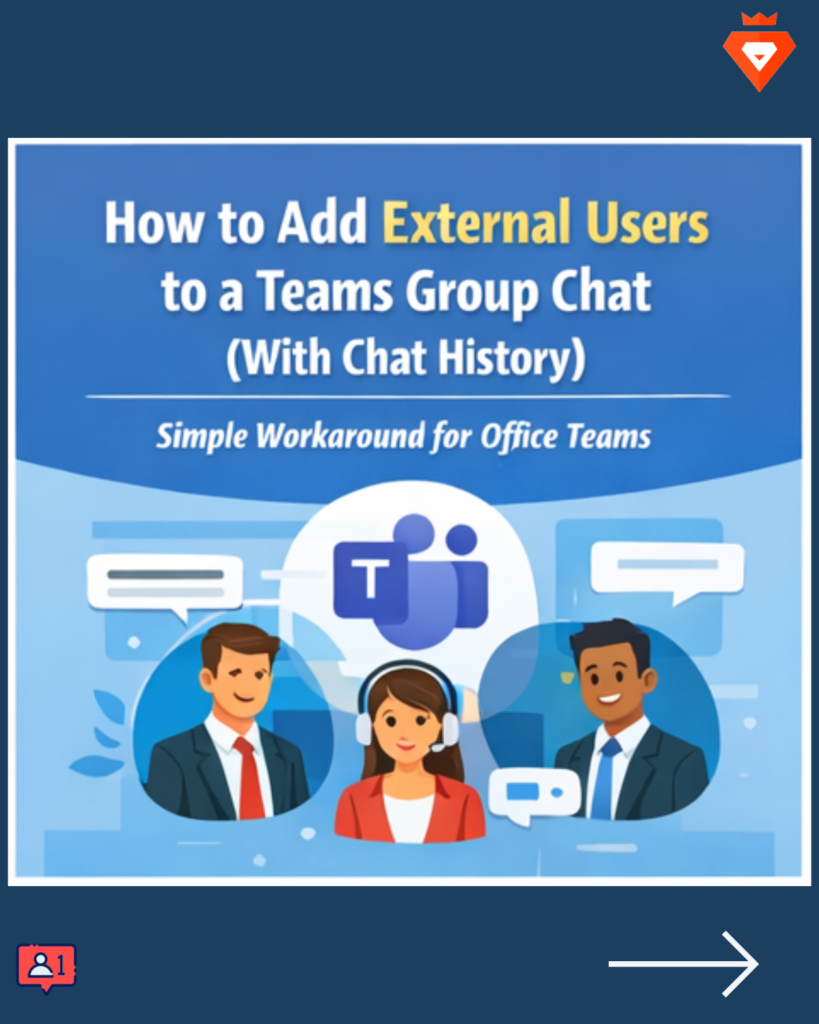
The Problem: External Users Can’t Be Added to Existing Teams Group Chats
Microsoft Teams allows external collaboration, but with limitations. One of the most common issues office users face is:
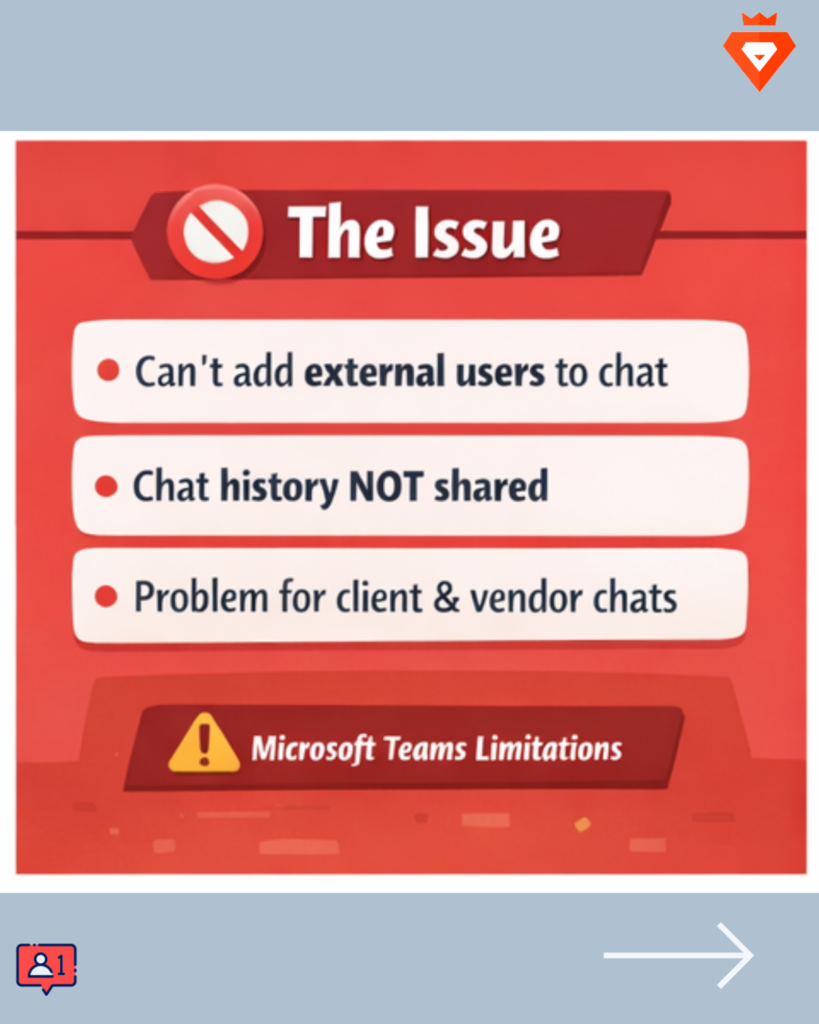
You cannot add external organizational users directly to an already-created group chat and expect them to see the previous chat history.
In many cases, Teams will either: – Block you from adding the external user altogether, or – Add them without giving access to the previous messages. This becomes a real problem when the chat already contains important background information, decisions, or files.
Real-World Scenario (What I Faced)
I had an existing Microsoft Teams group chat that was already active with internal team members. We needed to bring in users from another organization and ensure they had the full context of past conversations.
However, no matter what I tried, Microsoft Teams would not let me add those external users directly to the group chat with chat history intact.
That’s when I found a workaround that uses Teams channels and guest access to solve this limitation.
The Workaround: Convert External Users into Guests Using a Teams Channel
The solution is surprisingly simple once you know it. Instead of adding external users directly to the group chat, you first add them to a Teams channel.
When you do this, Microsoft Teams automatically converts those external organizational users into guest users.
Once they are guests, they can then be added to the group chat—with full chat history access.

Step-by-Step: How to Add External Users and Share Chat History in Teams
Step 1: Add the External User to a Microsoft Teams Channel
- Go to the Team where collaboration is happening
- Open an existing channel (or create one if needed)
- Add the external user’s email address to the channel
At this point, Microsoft Teams will send them an invite and classify them as a Guest.

Step 2: Confirm the User Is Added as a Guest
Once the external user accepts the invite: – They appear as a Guest in your organization – Teams now treats them differently than a standard external contact
This step is crucial, as guest users have broader collaboration permissions.

Step 3: Add the Guest User to the Existing Group Chat
Now comes the key part:
- Open the original group chat
- Add the newly converted Guest user
- When prompted, allow access to chat history
Because the user is now a guest, Microsoft Teams allows them to join the chat and view previous messages.
Why This Method Works
Microsoft Teams applies stricter rules to external organizational users than to guest users. By first adding them to a Teams channel:
- Their role changes from external to guest
- Guest users inherit permissions that allow deeper collaboration
- Chat history sharing becomes possible
This workaround effectively bypasses the limitation without breaking any Microsoft Teams rules or policies.

Who Should Use This Workaround?
This method is especially useful for: – Office professionals collaborating with clients or vendors – Project managers onboarding external stakeholders – Teams users who rely heavily on group chats for context – Businesses using Microsoft Teams for cross-organization collaboration
If you frequently work with people outside your organization, this trick can save you a lot of time and frustration.
Final Thoughts
Microsoft Teams is powerful, but some of its collaboration limitations aren’t always obvious—especially for everyday office users. If you’ve ever struggled to add external users to an existing group chat and share chat history, this workaround is a practical and reliable solution.
By first adding external users to a Teams channel and converting them into guests, you unlock the ability to include them in group chats with full context.
Hopefully, this guide helps make your Microsoft Teams collaboration smoother and more efficient.